CCSO-SAR goTenna Information

Table of Contents
Quick Links:
Accessing the Portal
Portal Access / URL: https://portal.gotenna.com/login
Login Credentials:
- Organization: CCSO Search and Rescue
- Email: The email you provided a SAR Coordinator by which your account was created.
- Password: The password you used when you received your account creation email / link.
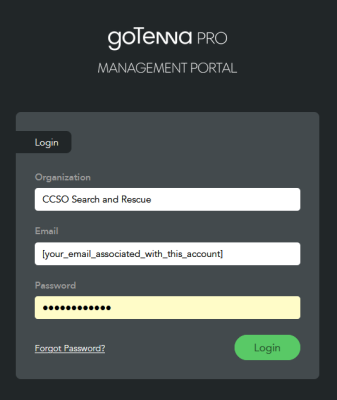
This will only work if you already have an account set up by a SAR Coordinator. Access is usually limited to Operations and Team Leaders.
Please continue to Deploy Offline
Setting Radio Into Relay Mode:
Also see instructions from goTenna Knowledge base. There are two methods to put the radio into Relay Mode.
To confirm if a radio is in relay mode, quickly push the power button on the side of the radio and observe three LED flashes. If the radio only flashes once, it is in normal operation mode.
It is strongly recommended to drop a point on the map and broadcast its location when you emplace a relay so that it could be recovered in the future.
Method 1 - Manual (simplest)
- After turning the radio on, push the side power button three times, and the LED will illuminate solid.
- Press the side power button three more times, the LED will shut off.
- Tap the power button to confirm that the radio is in relay mode by observing three LED flashes.
To put the radio back in normal operation mode and take it out of relay mode, turn the radio off, then back on, and pair it with a EUD.
Method 2 - ATAK Plugin
- Toggle the switch to turn relay mode on or off.
- The radio will continue to be paired to the EUD so you must unpair.
Tip: After unpairing with a relay, move outside of Bluetooth range to prevent pulling the radio out of relay mode when attempting to pair with another radio.
After pairing to another radio, the plugin will automatically put it into relay mode. You will have to go toggle the Relay Mode switch off on the second radio to share your location and communicate with the network
Deploy Offline:
CCSO-SAR issued radio / EUD combinations are already configured and should not require this step. If so, please notify a SAR Coordinator.
Also see instructions from goTenna
Step 1:
Once the ATAK plugin is downloaded and installed, proceed into the ATAK menu and select goTenna.
Step 2:
On the Welcome Screen select Get Started.
Step 3:
Select device you want to pair to: goTenna Pro-X on screen to complete pairing process.
Step 4:
At the login screen, below user credentials scroll down and select Setup next to deploying offline.
Step 5:
Create QR code from a phone => Select Scan frequency tuning QR code.
Step 6:
Position the QR scanner over the QR code (from another configured EUD or as provided by a SAR Coordinator) to retrieve the frequency sets. Use the green squares as a guide for positioning the camera.
You may be prompted to scan multiple QR codes depending on the number of frequency sets shared. The phone or goKit that is displaying the QR code will display the total number of QR codes on the top of the screen. After scanning the first code, select next to display the followings QR codes and scan one at a time.
Step 7:
Once the frequency set is scanned an on-screen notification will tell you that the frequency sets have been saved.
Downloading ATAK Plugins from the Portal
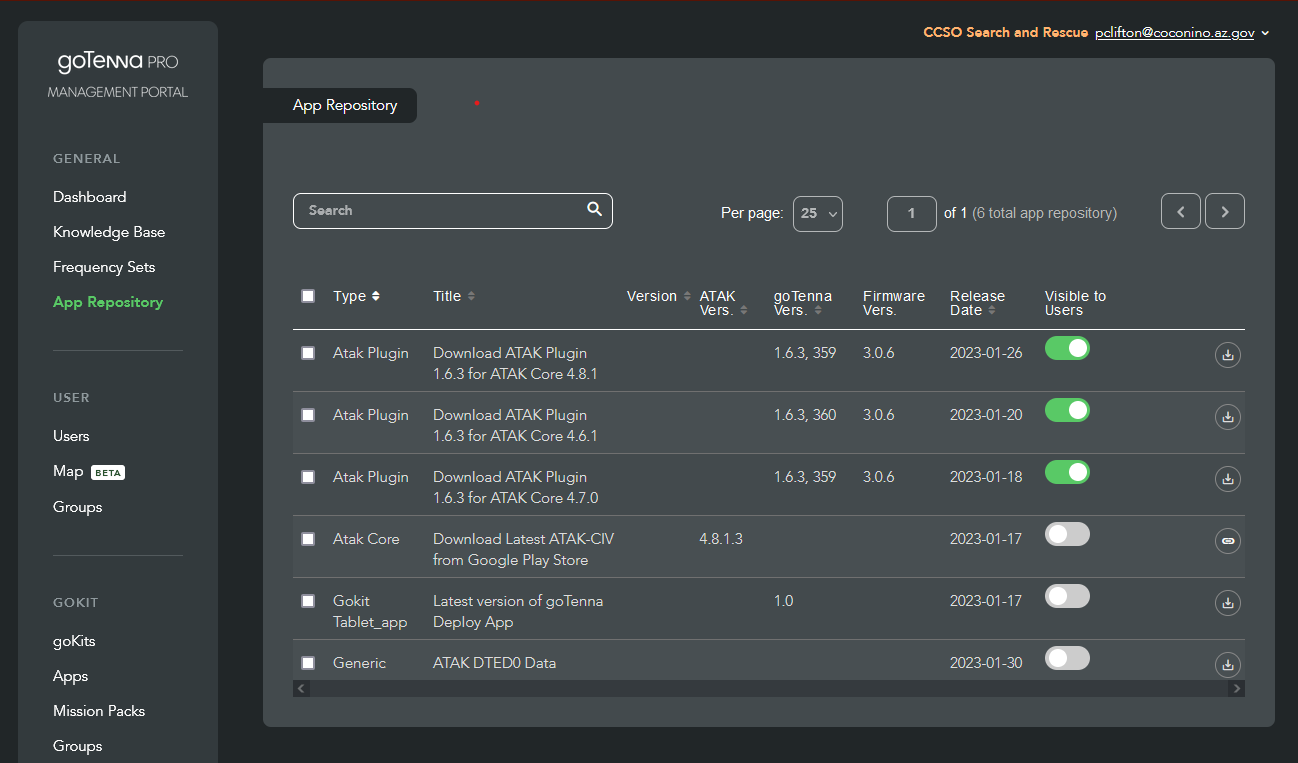
- Access the Portal as described above.
- Click on "App Repository" Menu item in left column